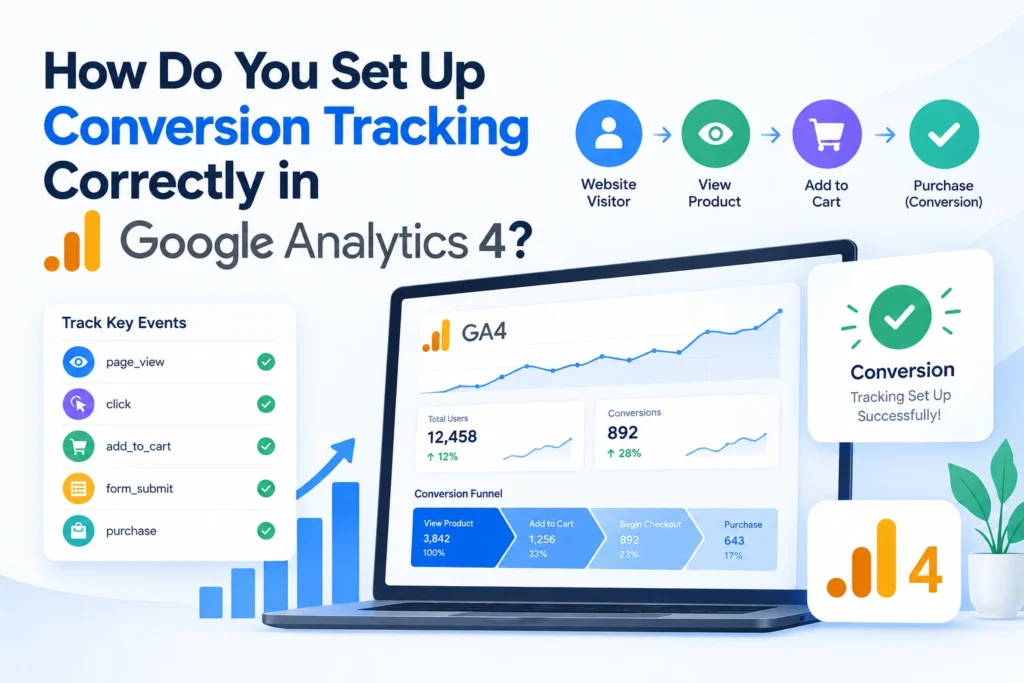
There is no doubt that conversion tracking is beneficial for any business trying to understand whether its website or app is actually generating results, be it a completed purchase, a submitted form, or a confirmed booking. It gives marketers, business owners, and analysts real evidence of what’s working, instead of relying on guesswork. Also, in GA4, what used to be called “conversions” are now referred to as key events. However, many marketers and small business owners still set these up incorrectly, which leads to inflated numbers, missing data, and decisions based on inaccurate insights. With these recent changes, tracking the right way matters more than ever. So we have this guide that walks you through exactly how to set up the conversion tracking correctly in GA4. Let’s begin!
At a Glance: GA4 Conversion Tracking SetupTo set up conversion tracking correctly in GA4, identify the business actions that matter (purchases, form submissions, bookings), confirm whether GA4 already tracks them through automatic or enhanced measurement events, configure custom events in GA4 or Google Tag Manager when needed, and mark them as key events. Before relying on the data, test the setup using GA4’s DebugView and Realtime reports, then verify accuracy through key event counts, attribution, and campaign performance in GA4 reports. |
Why Is Accurate Conversion Tracking Important in GA4?
Before diving into setup, it helps to understand why getting this right actually matters for your business.
Measure the Actions That Matter to Your Business
Accurate tracking shows which actions genuinely drive value, purchases, sign-ups, bookings, rather than surface-level traffic numbers. As the U.S. General Services Administration’s Digital.gov explains, when analytics tools are implemented improperly, or their data is analyzed incorrectly, it can derail an organization’s ability to make informed decisions. The same logic applies to any business: without correctly configured tracking, you’re left reacting to noise instead of real signals.
Make Better Marketing and Optimization Decisions
When key events are tracked correctly, marketing teams can see exactly which ads, emails, or landing pages are actually driving your growth. That clarity means budget, creative, and messaging decisions get backed by real performance data instead of assumptions or gut feel.
| Ready to Get Your GA4 Tracking Set Up Right?
Our team configures, tests, and verifies every key event accurately, so your data reflects real business performance from day one. |
Ways to Set Up Conversion Tracking Correctly in Google Analytics 4?
Decide Which Actions Should Be Tracked
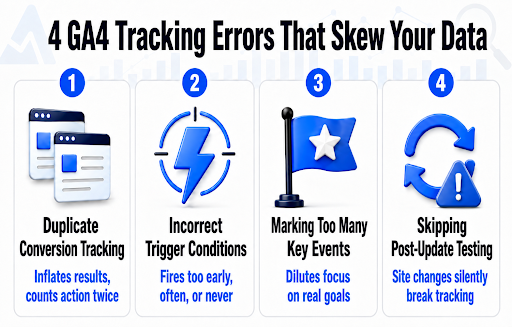
First, identify which actions genuinely reflect business success, such as purchases, form submissions, bookings, sign-ups, or quote requests. Also, remember that not every click needs to become a key event; tracking too many dilutes your reporting and makes it harder to focus on what truly matters.
Check Whether GA4 Already Tracks the Event
Before building anything custom, check what GA4 already captures. This includes automatically collected events, enhanced measurement events like scrolls and outbound clicks, Google’s recommended events, and custom events unique to your business. Knowing the difference prevents unnecessary duplicate tracking.
Configure the Event in GA4 or Google Tag Manager
Depending on complexity, events can be configured directly inside GA4 or through Google Tag Manager for more precise control. Either way, you’ll need to define the event name, the trigger conditions that fire it, and any relevant parameters that add context.
Mark the Event as a Key Event
Once an event is firing correctly and collecting accurate data, it can be marked as a key event inside GA4’s admin settings. Marketers still commonly refer to these as “conversions” out of habit, even though GA4 officially renamed the terminology in 2024.
Test the Tracking Before Relying on the Data
Testing matters most for reliable reporting. Use Google Tag Manager’s Preview mode and GA4’s DebugView to confirm events fire correctly. Check Realtime reports, verify the event fires only once per action, and confirm parameters are populating with accurate values.
Verify the Data in GA4 Reports
Implementation isn’t complete just because a tag fires. You will also need to review key event counts, traffic-source attribution, and landing page data over several days. Also check campaign performance for accuracy, and watch for unexpected duplicates or missing events.
What Are the Most Common GA4 Conversion Tracking Mistakes?
Even a well-planned GA4 setup can quietly produce misleading numbers if a few common errors slip through. Here’s a quick look at what typically goes wrong, and why it matters for your reporting accuracy.
How Can You Confirm Your GA4 Conversion Tracking Is Working Correctly?
Compare Real-Time Actions With Reported Events
Perform the action yourself, submit a form or complete a test purchase, then check GA4’s Realtime report immediately. If the event doesn’t appear within a few minutes, something in the setup needs troubleshooting.
Cross-Check Numbers With Other Systems
Compare GA4’s key event counts against actual numbers from your CRM, ecommerce platform, or booking system. Significant mismatches usually point to duplicate tracking, missing triggers, or events firing on the wrong pages.
Monitor Trends Over Multiple Days
A single day of data isn’t enough to confirm accuracy. You also need to watch key event counts and conversion rates over one to two weeks to ensure numbers stay consistent and align with expected activity.
Review Parameter Accuracy Regularly
Even correctly firing events can carry wrong parameter values, like incorrect purchase amounts or missing form details. So, periodically auditing these parameters keeps your reports trustworthy as your website evolves.
Conclusion
Setting up conversion tracking correctly in GA4 takes more than flipping a switch; it requires identifying the right actions, configuring them properly, testing thoroughly, and verifying data consistently. Done right, it becomes the foundation for smarter, measurable marketing decisions.
If you’re looking to get this done right without the guesswork, check out Think Shaw. Our team specializes in accurate GA4 implementation, custom event tracking, and data-driven marketing strategies built around your specific business goals.
| Stop guessing, start converting. Get in touch now with Think Shaw and turn messy data into real revenue. |
FAQs- About Conversion Tracking in Google Analytics 4
Can you delete a key event in GA4?
Yes, you can remove key event status from an event, but historical data already collected for that event remains in your reports.
Why is my GA4 conversion count different from Google Ads?
Different attribution models, reporting windows, and deduplication settings cause GA4 and Google Ads to display noticeably different conversion counts for the same action.
Do key events affect Google Ads bidding?
Yes, importing key events as conversions into Google Ads directly influences Smart Bidding strategies and campaign optimization signals for better ad spend.
Can GA4 track conversions without cookies?
It can, as GA4 uses behavioral modeling and Google signals to estimate conversions when cookies or user identifiers aren’t available due to privacy restrictions.
How long does GA4 take to show key events after setup?
New key events typically appear in standard reports within 24 to 48 hours, though Realtime reports display qualifying events almost instantly after setup.
Does GA4 support offline conversion tracking?
Yes, offline conversions can be imported into GA4 using data import features connected to CRM systems, call tracking, or in-store sales data.